DEMO GUIDE
StillDeep Pet Store
Try an animal store, grooming salon and stock-count app connected to the same engine.
Open the desktop →How the desktop works
On a computer, double-click an application icon. On a touch screen, tap it. Each window represents a point of sale or a tool. Minimize, maximize or restore windows with the controls in their title bar. The taskbar lets you return to an open application. Change the desktop language with its language button.
A path to try
- Open the store register and use the demo account. Add products, explore customer and checkout options, then view a test receipt.
- Open the grooming register to explore appointments and services offered in that screen.
- Open the inventory app, choose a warehouse and try a stock count. Review differences before applying a count.
What this demo supports
- Store sales, customer selection and test checkout.
- A grooming register and its appointment and service workflow.
- Stock counts with manual entry, barcode-reader input or camera scanning when supported by the browser.
Choose a tool to try
Keep the desktop open in its original tab while you follow this guide. The screenshots show the French interface; select an image to enlarge it.
Find your way around the desktop
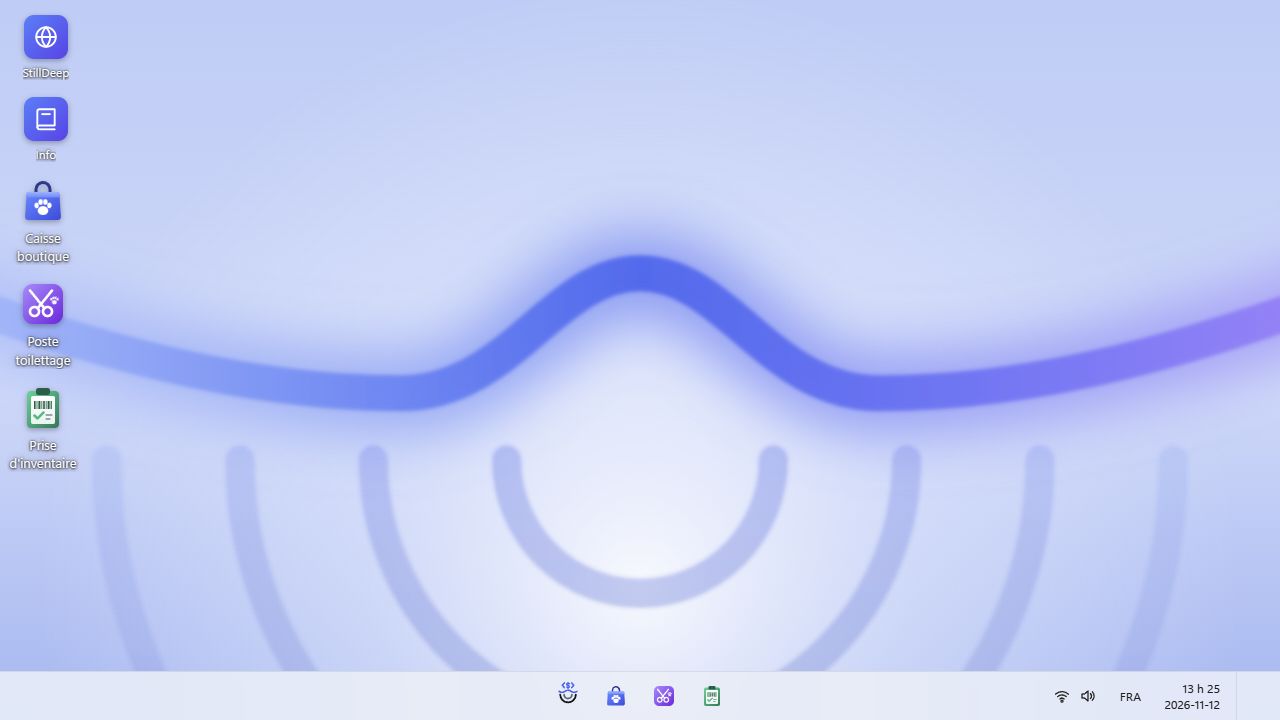
Store register: sell a product
Open the store register and choose a demo employee, such as Caroline. The test password is provided on screen.
Open a shift with zero starting cash, or choose Resume here if the employee’s shift is paused. This opens the catalogue and cart.
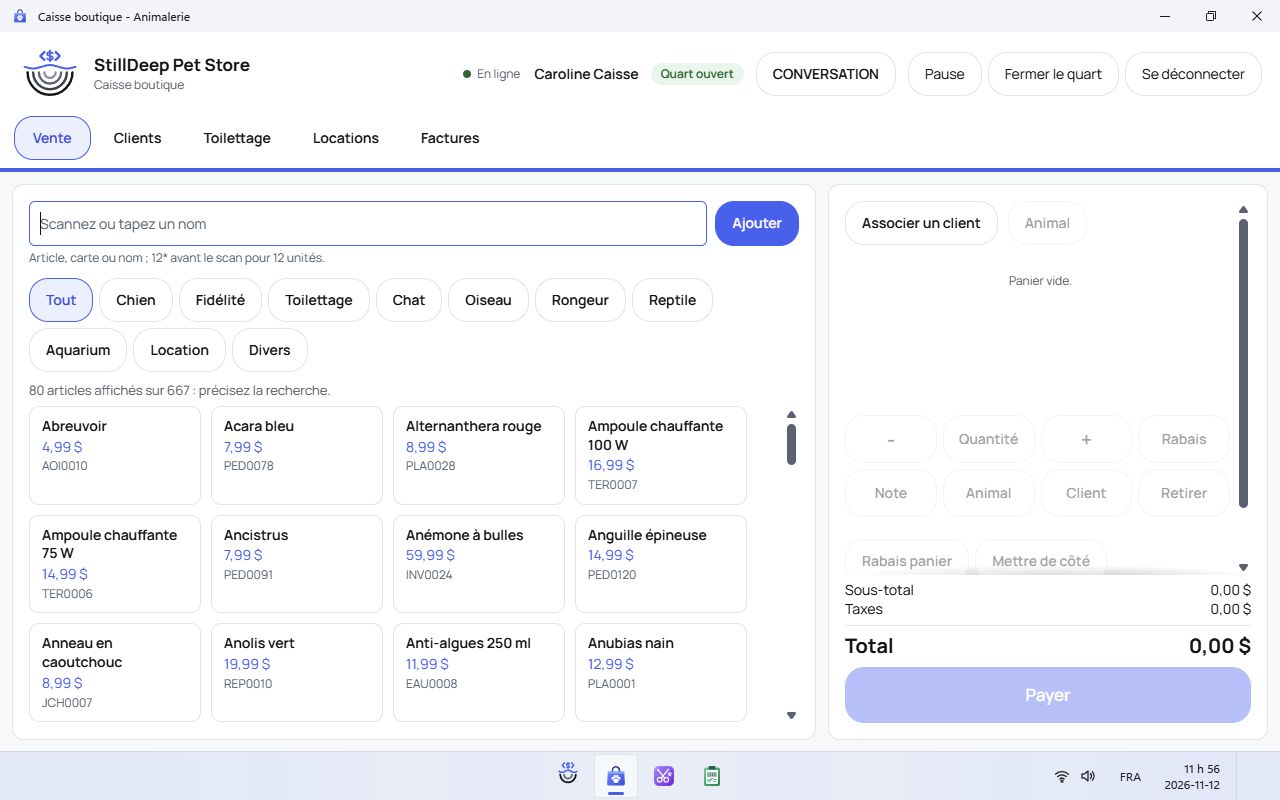
Open a shift with zero starting cash, or choose Resume here if the employee’s shift is paused. This opens the catalogue and cart. Search by name or code, or choose a category, then add an item. Set the quantity or weight when requested.
Select a customer when needed. Review the total and actions allowed for your role, then try a test checkout or cancel the sale.
Grooming register: review and prepare an appointment
Open the grooming register and choose an employee with salon access. Sign in with the offered test details.
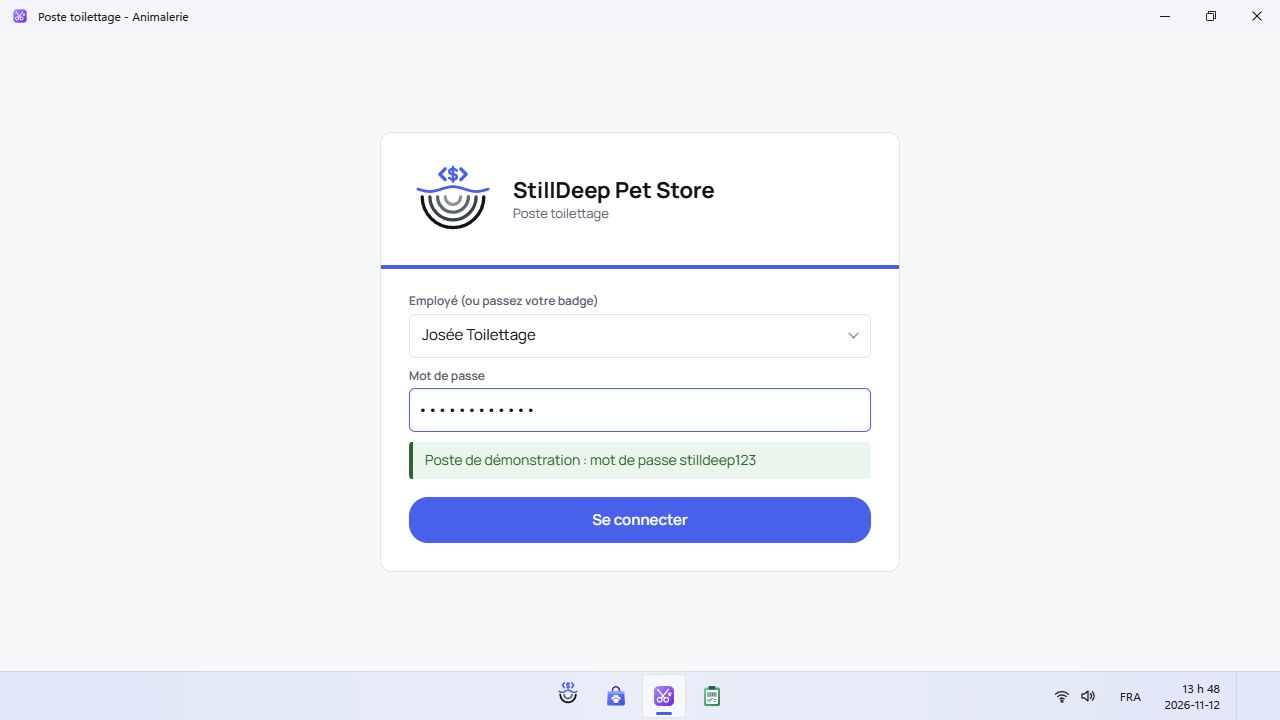
Open the grooming register and choose an employee with salon access. Sign in with the offered test details. Choose the offered date, employee and agenda view. Find an appointment or open the available creation action.
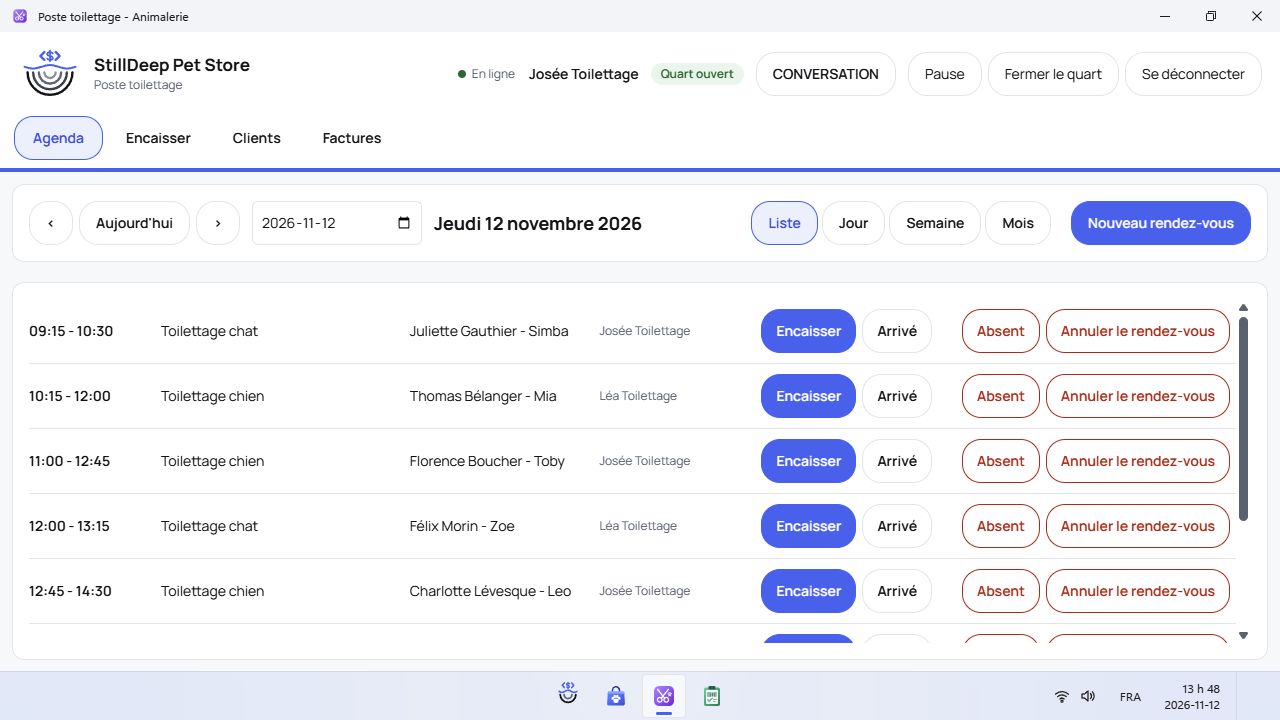
Choose the offered date, employee and agenda view. Find an appointment or open the available creation action. Choose the fictional customer and animal, then select the offered services and slot. Check the employee and duration before confirming.
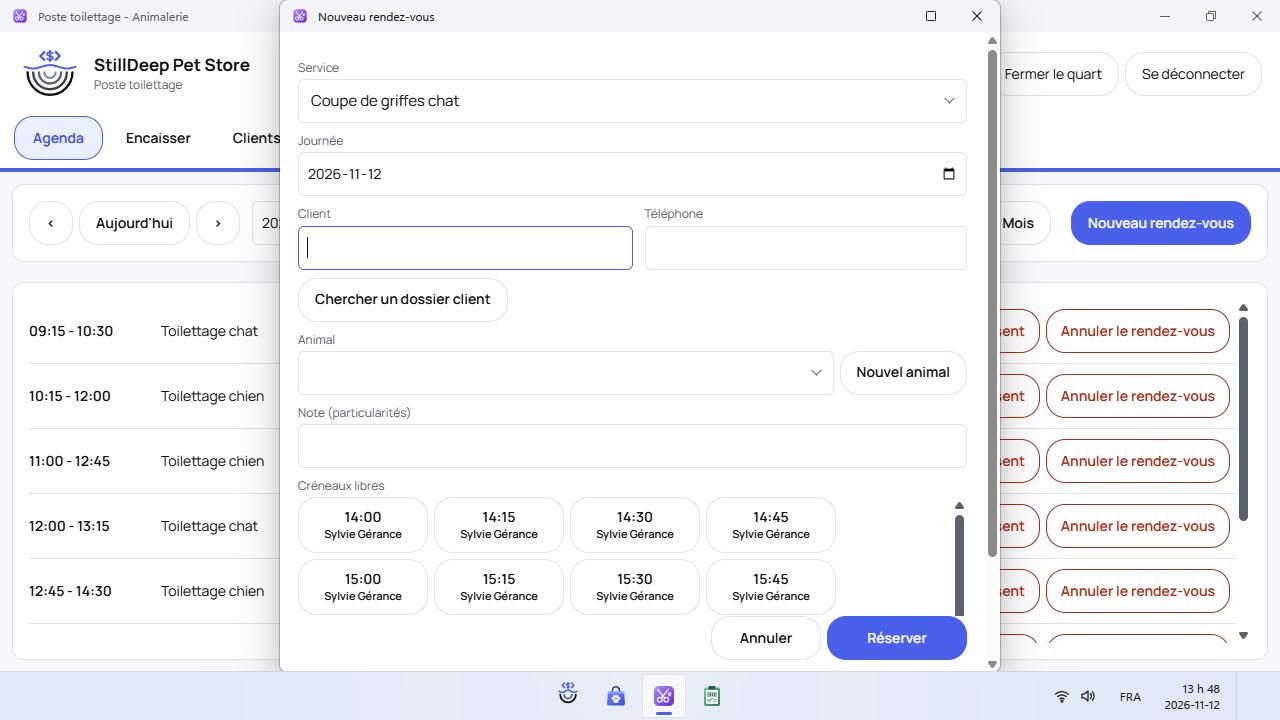
Choose the fictional customer and animal, then select the offered services and slot. Check the employee and duration before confirming. Open the appointment to continue the salon’s available actions. Services and products added to a sale are calculated by the engine.
Stock count: count and review
Open Stock count and sign in with an authorized employee. Choose the warehouse and start or resume a count session.
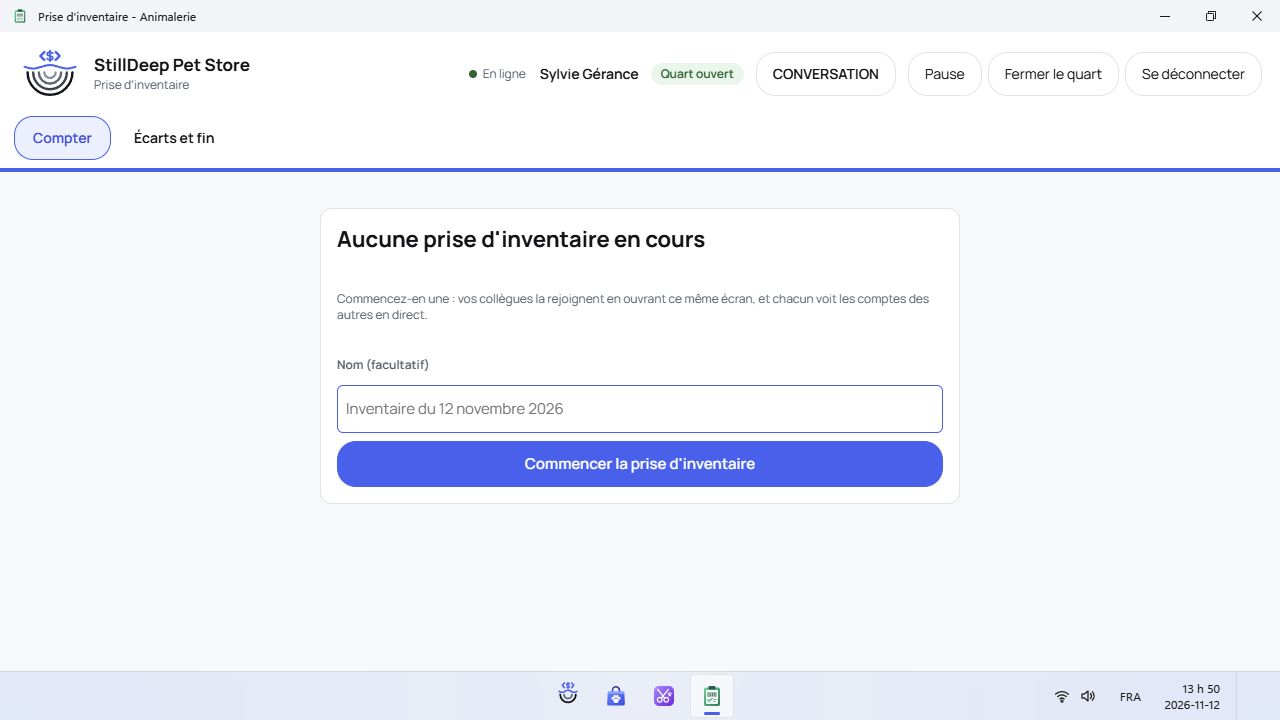
Open Stock count and sign in with an authorized employee. Choose the warehouse and start or resume a count session. Search for or scan an item, then enter the observed quantity. Camera use is optional and depends on browser permission.
Continue counting items, then review the differences. Check that you selected the intended warehouse.
Apply the count only if you intend to change shared demo stock. For a read-only visit, stop before that confirmation.
Before you test
Use fictional information and only the test accounts and payment methods indicated on screen. Demo data may be shared by visitors: a confirmed sale, booking or stock change can affect the next test. An empty list may mean that a different date, employee or warehouse is selected.
The store, customers and products are demonstration data. Applying a stock count changes the demo stock. Camera access requires permission and a compatible device.
MAKE IT YOUR OWN
The visual interfaces are provided and editable
The example interfaces are available as source code. You can adapt their screens, layouts, colours and visual assets to your own business or brand, under the terms of the example repository’s licence. These demos show different interfaces built on the same StillDeep engine.
The StillDeep engine is proprietary and separate from the example interfaces. Making the interface available does not make the engine open source.